![59b7eb52c29cb1fb87e1bba7bf1ef88c41152899.png]](https://help.remesh.ai/hs-fs/hubfs/59b7eb52c29cb1fb87e1bba7bf1ef88c41152899.png?height=40&name=59b7eb52c29cb1fb87e1bba7bf1ef88c41152899.png)
This article is relevant to our Live and Flex Conversations. You can find more information about our product offerings here.
Remy can help you go from a research objective to a complete Discussion Guide through a conversational, AI-assisted workflow. Remy handles research plan creation, section and question design, and message type allocation all guided by your inputs and iterative feedback.
Included in this Article
- Getting Started
- Upload Context
- Tell Remy About Your Research
- Use a Previous Conversation as Reference
- Review and Revise Your Research Plan
- Generate Your Discussion Guide
- Preview and Edit Your Discussion Guide
- Import Your Discussion Guide Into a Conversation
- Frequently Asked Questions
Getting Started
Please note, in order to interact with Remy you will need to have Generative AI (LLM) features enabled for your Workspace and at least one team. To enable Generative AI (LLM) features in your workspace, please reference this article.
To get started, navigate to Remy and simply let Remy know that you'd like to create a discussion guide. You could say something like
- Help me create a research plan
- Help me create a discussion guide
- Help me create a Conversation guide
Remy will recognize your request and begin the AutoDG creation flow.
Upload Context
You have the option to attach files and have Remy use them as context. Upload a brief, a prior discussion guide, or background material, and Remy can draw on it while planning and building with you.
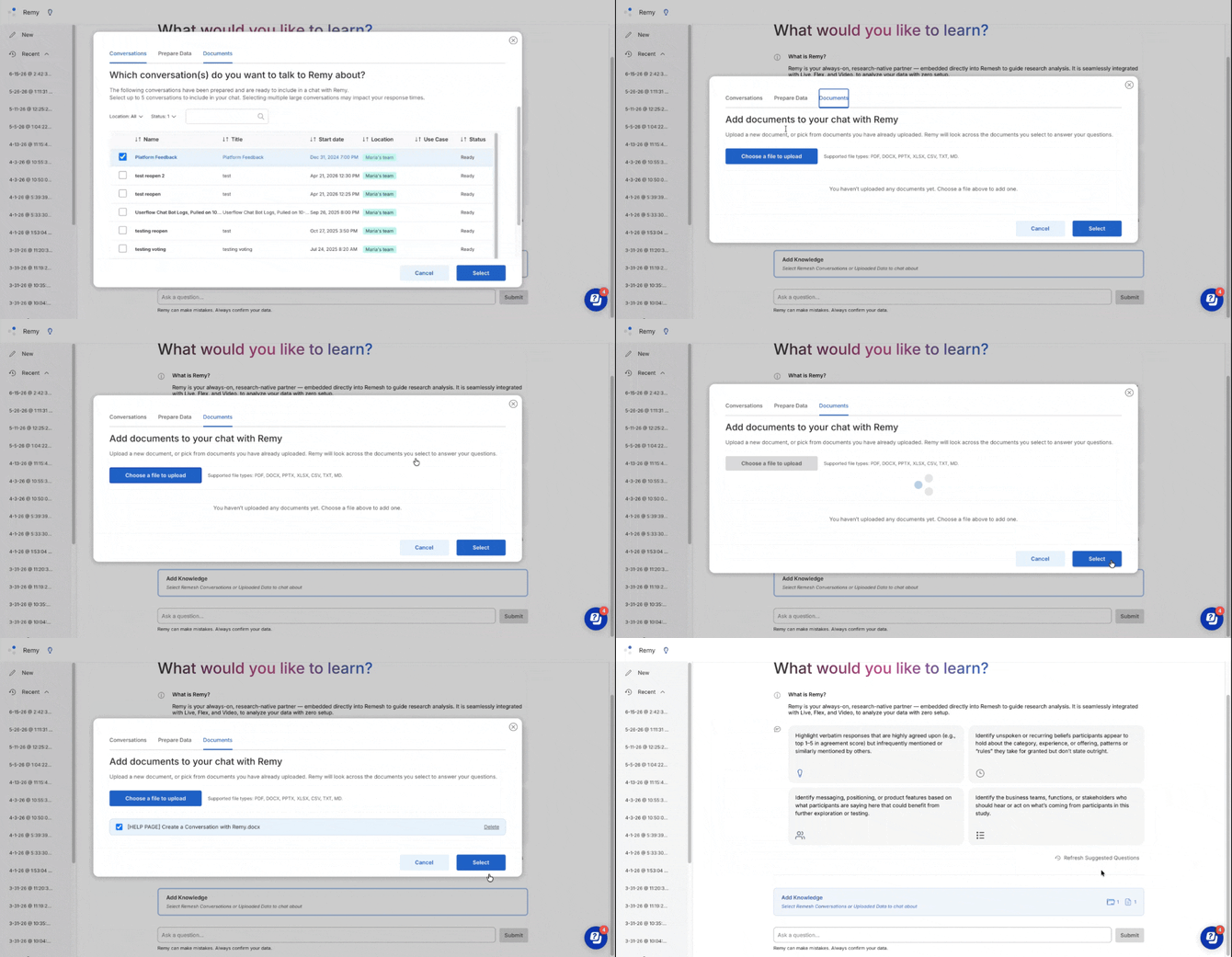
Supported file types: PDF, DOCX, PPTX, XLSX, CSV, TXT, MD
Tell Remy About Your Research
After letting Remy know that you'd like to create a discussion guide, you will be presented with a brief form to describe your research.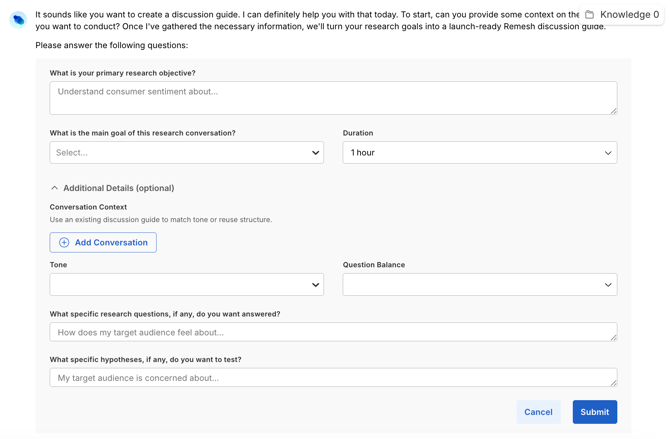
Required Inputs
- Research objective: What you want to learn from this study.
- Research goal: The type of research you are conducting (e.g., Explore perspectives, Understand experiences, Diagnose a problem, Identify opportunities, Align around change, Evaluate a concept, Compare options, Inform strategy).
- Duration: How long the session should be. Options: 15, 30, 45, 60, 75, or 90 minutes.
Optional inputs (expand under "Refine")
- Conversation Context — Reference a previous Conversation to match tone or reuse structure. See below for more information.
- Research questions: Specific questions you want the study to answer.
- Hypotheses: What you expect to find or want to test.
- Question balance: The ratio of quantitative to qualitative questions (default 50/50).
- Tone: Professional or Casual
Add as much detail as possible, then click submit.
Use a Previous Conversation as Context
You have the option reference an existing Remesh Conversation to guide how Remy builds your new Discussion Guide. This is useful when you want to:
- Build a follow-up study that maintains the same voice and style
- Replicate a proven question structure for a new topic
- Ensure consistency across a series of related studies
How to add a Conversation
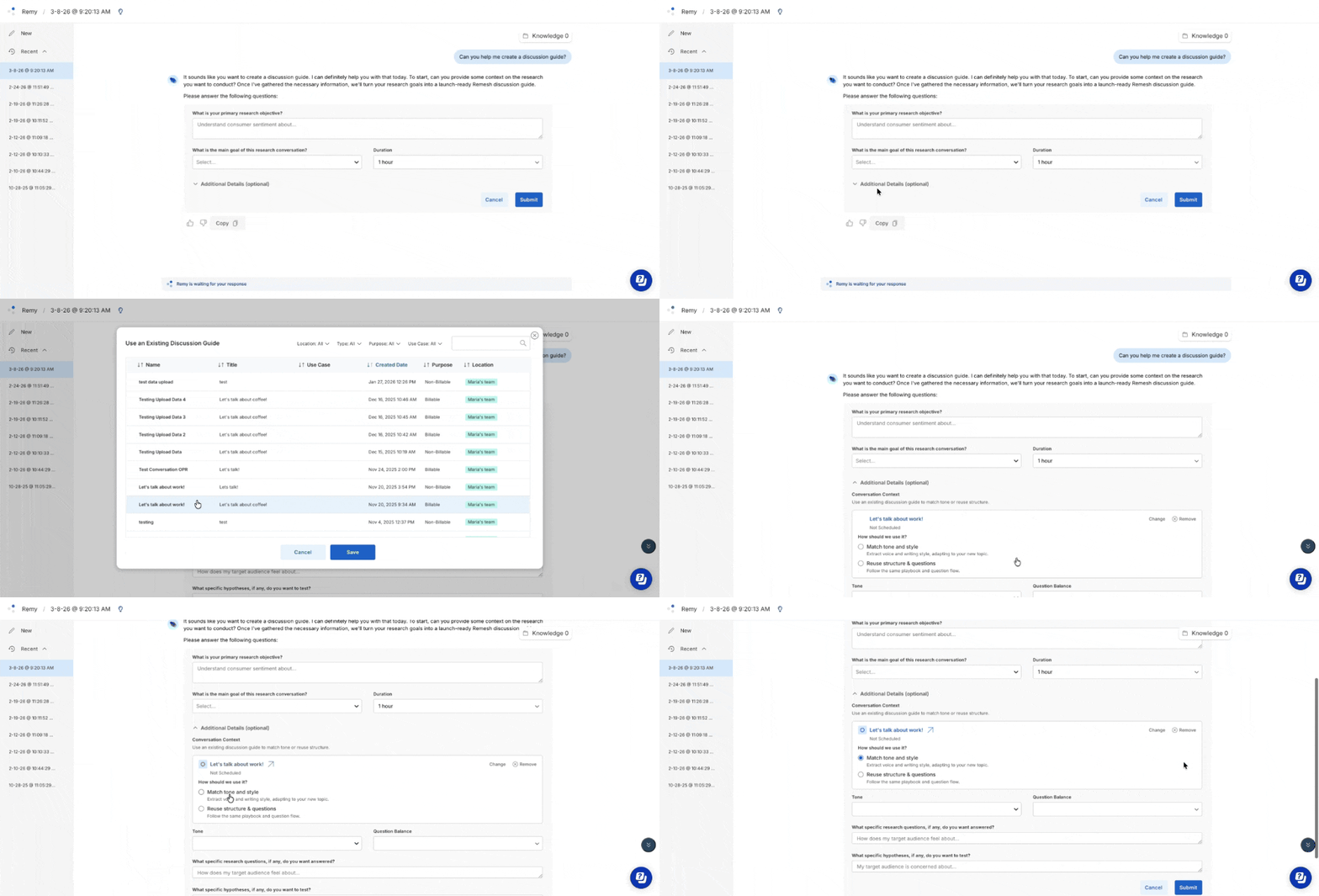
- Expand Additional details in the input form.
- Under Conversation Context, click Add Conversation.
- A selection modal appears showing your available Conversations. Select the one you want to reference.
- Chose how you would like to use the Conversation. You must choose one of two options:
|
Option |
What it does |
Effect on form |
|---|---|---|
|
Match tone and style |
Extracts the voice and writing style from the selected Conversation and adapts it to your new topic. |
Tone dropdown is disabled (Remy will match tone from the selected Conversation). |
|
Reuse structure & questions |
Follows the same playbook and question flow from the selected Conversation. |
Both Tone and Question Balance dropdowns are disabled (Remy will match structure from the selected Conversation). |
To manage your Conversation selection, you can do the following.
- Click the Conversation name to open it in a new tab and review its content.
- Click Change to reopen the selection modal and pick a different Conversation.
- Click Remove to clear the selection and return the form to its default state.
Review and Revise Your Research Plan
After you submit, Remy will generate a research plan to review.
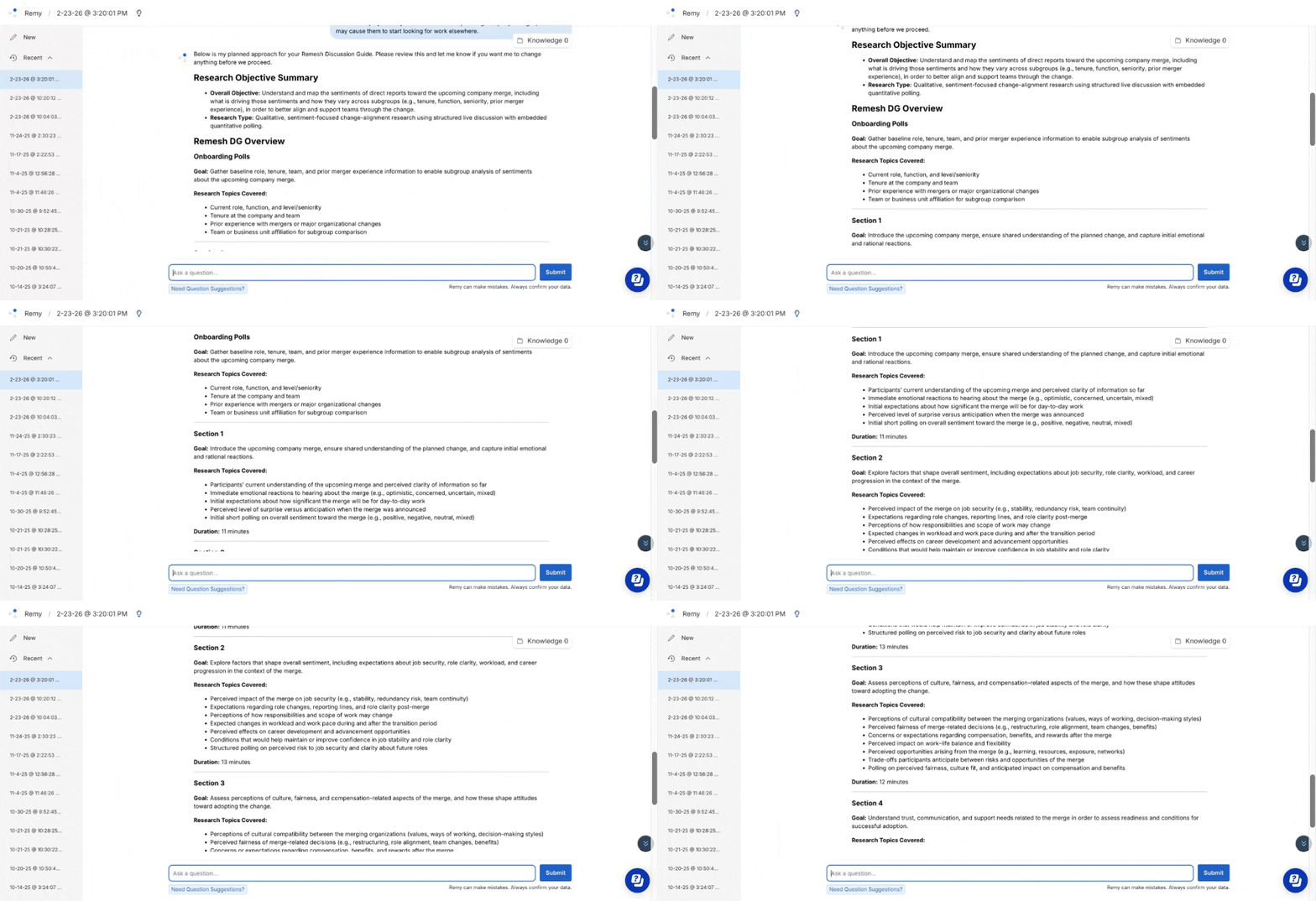
This plan includes:
- Research objective summary: A recap of your stated objective and research type.
- Section strategy: The proposed sections of your Discussion Guide, including names, goals, and sequence.
- Item plan: The count of question types per section with example phrasings.
- Estimated time: Total estimated duration and time per section.
- Assumptions: What Remy inferred or assumed based on your inputs.
- Constraints and to-dos: Items that require manual follow-up, such as adding Branching Asks in the DG Builder after import.
Read through this plan, as it will inform the Discussion Guide that Remy creates. If something in the Research plan needs to change, provide feedback directly in the chat. Remy will then return an updated version. You can request changes such as:
- Add a section about competitor perceptions.
- Make section 2 shorter and more focused on barriers.
- Change the duration to 75 minutes.
- Use a more casual tone.
Continue to iterate on the research plan with Remy as many times as needed. Once you are satisfied, let Remy know you are ready to proceed.
Generate Your Discussion Guide
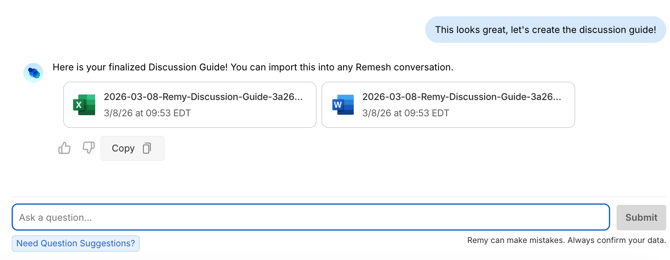
When you accept the plan, Remy generates a complete discussion guide which is available for export either as a Word Document or Excel file. We recommend utilizing the Word Document function if you intend to share the file with stakeholders or make collaborative edits to the discussion guide.
Preview, Edit and Export Your Discussion Guide
Please note this feature will be available starting April 6th!
After Remy generates your Discussion Guide, you can preview and edit it before downloading.
Click Preview DG on the generated Discussion Guide message to open a side panel showing the full DG. This includes, sections, question types, poll options and timing.
.png?width=670&height=379&name=image%20(2).png)
The preview is read-only. To make changes, use the chat.
To revise your Discussion Guide, type your edit request directly in the chat. Examples:
- Change question 3 to focus on brand trust
- Move the demographic poll to the beginning
- Add a ranking question about feature priorities
- Remove section 2 and consolidate into section 1
.png?width=670&height=213&name=image%20(3).png)
Remy applies your edits and generates updated download files. Each edit creates a new exportable version with its own Preview DG button, so you can compare versions side by side.
When you are satisfied, click the download link to save your chosen file format. After exporting a discussion guide as a Word document, you can edit it in the Word document and upload it back into Remesh to update the existing discussion guide. This can be helpful if you are hoping to share your Discussion Guide with stakeholders for feedback and want to import the finalized guide. For step by step instructions, see the article on uploading a discussion guide from a Word document.
There are no formal formatting constraints when editing the Word document, but please note that currently branching questions cannot be added or edited in the Word document. Any branching logic must be managed directly in the platform.
Import Your Discussion Guide Into a Conversation
After exporting, import your Excel document into a new or existing Remesh Conversation using our standard import flow.
- Create a new Conversation or open an existing one.
- Navigate to the Discussion Guide Builder.
- Use the import file function to upload your Word or Excel file.
- Review the imported Discussion Guide in the Builder and make any additional edits (such as adding Branching Asks).
Branching Asks are not included in the exported DG. This is consistent with the existing platform behavior where Branching is not importable from Word, Excel, or pasted text. Add Branching manually in the Builder.
Frequently Asked Questions
- Does AutoDG create a discussion guide directly into a Remesh Conversation
No. AutoDG outputs the Discussion Guide as an Excel or Word file download. The intended workflow is to export, review with stakeholders, then create a Conversation and import the Excel file. - Can I revise the Discussion Guide after Remy generates it?
Not within Remy. You can revise the Research Plan as many times as you like before accepting it. Once the DG is generated, edits should be made in the Excel file or in the DG Builder after import. - Can I use past Conversations as a template or style reference?
Not at this time. - Does AutoDG support Branching Asks?
No. Branching Asks are not generated by AutoDG and are not importable via Excel. This is a platform-wide limitation, not specific to AutoDG. Add Branching manually in the DG Builder after importing the Excel file. - What languages are supported?
English only. - Does AutoDG work for Video conversations?
No. AutoDG applies to Live and Flex conversation types only. - Can other users in my workspace see my Remy threads?
No. Remy threads are specific to each user. - How is this different from using ChatGPT to write a Discussion Guide?
AutoDG is purpose-built for Remesh. It understands Remesh-specific question types (Ask Opinion with % Agree, Ask Experience with categories, Ranking), follows DG structural best practices (interleaving question types, neutral language, proper use of Text messages), and outputs in the exact Remesh Excel template format ready for import. A generic LLM would require significant manual rework to produce a Remesh-compatible DG.