![59b7eb52c29cb1fb87e1bba7bf1ef88c41152899.png]](https://help.remesh.ai/hs-fs/hubfs/59b7eb52c29cb1fb87e1bba7bf1ef88c41152899.png?height=40&name=59b7eb52c29cb1fb87e1bba7bf1ef88c41152899.png)
MaxDiff lets you prioritize a longer list of options by asking participants to pick the option that applies most and the option that applies least from a series of small sets. Each option earns a Net Best-Worst Score from -100 to +100, which gives you a clearer priority order than a single ranking when the list has 8 or more items.
This feature applies to Live and Flex Conversations. Learn about Remesh product offerings.
When to use MaxDiff vs. Ranking. Use Ranking for a short list (up to about 7 options) or when the exact ordered positions matter. Use MaxDiff for 8 to 30 options where you want relative importance or preference, for example which of 15 benefits matter most, which of 12 messages resonate, or which workplace aspects employees value.
Included in This Article
- Setting Up a MaxDiff Question
- How Screens Are Built
- Participant Experience
- How Scores Are Calculated
- Monitoring Responses During the Conversation
- Analyzing MaxDiff Results
- Exporting MaxDiff Data
- MaxDiff and Remy
- Troubleshooting
- Frequently Asked Questions
Setting Up a MaxDiff Question
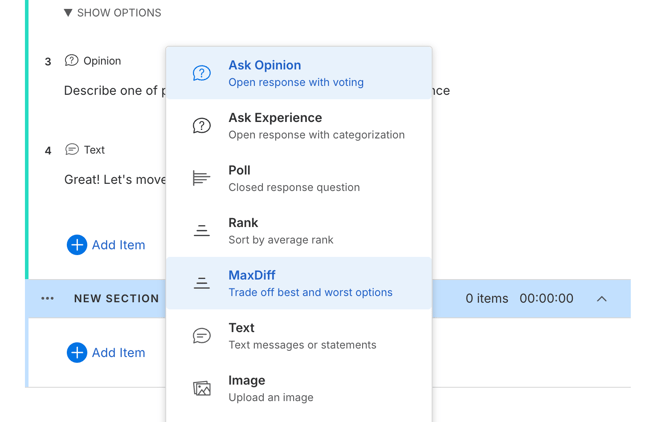
- In the Discussion Guide builder, add a question and choose MaxDiff (subtitle "Trade off best and worst options").
- Enter your question text. The placeholder suggests the shape: "Which of these is most and least important for..."
- Add between 8 and 30 options with Add Option. Each option must be unique and 255 characters or fewer.
- For Live conversations, set the duration. For Flex, no timer applies.
- Save. Remesh builds the screens automatically when the question is sent.
|
Setting |
Live |
Flex |
|---|---|---|
|
Options |
8 to 30, unique, 255 characters max |
Same |
|
Duration |
1:00 to 5:00 in 30-second steps; default 2:00 |
No timer; Remesh estimates about 10 seconds per screen for the length-of-interview estimate |
|
Optional |
Available in the question's Settings tab |
Not shown (Flex questions are not timed) |
|
Order |
Screens and options are randomized per participant, always |
Same |
Duration guidance (Live). Participants need roughly 10 seconds per screen. If your duration is shorter than that, the builder shows: "Consider increasing the duration participants can respond to this MaxDiff since it has {N screens}, about {seconds} seconds per participant." At the 2:00 default this appears for 13 or more screens; see the screen table below.
After sending. You can edit option wording, but you cannot add or remove options once the question has been sent, because the screens are already built around the option count.
Other ways to create a MaxDiff
- Excel template: the Discussion Guide Excel template includes a maxdiff item type. Imports with fewer than 8 or more than 30 options are rejected ("MaxDiffs require a minimum of 8 options" / "MaxDiffs allow a maximum of 30 options").
- Paste or Word import: MaxDiff questions are recognized in pasted text and .docx guides.
- Duplicate conversation: MaxDiff questions and options are copied, including translations; the screens are regenerated when the copy is sent.
- Remy: when Remy AutoDG builds a discussion guide, it can propose a MaxDiff for a section whose goal is prioritizing roughly 8 to 20 items (at most one per section). The Public API and the Remesh MCP server also accept MaxDiff question definitions.
Not available: MaxDiff cannot be an onboarding question, cannot be the source of a Branching question, and cannot be sent during a Video Interview.
How Screens Are Built
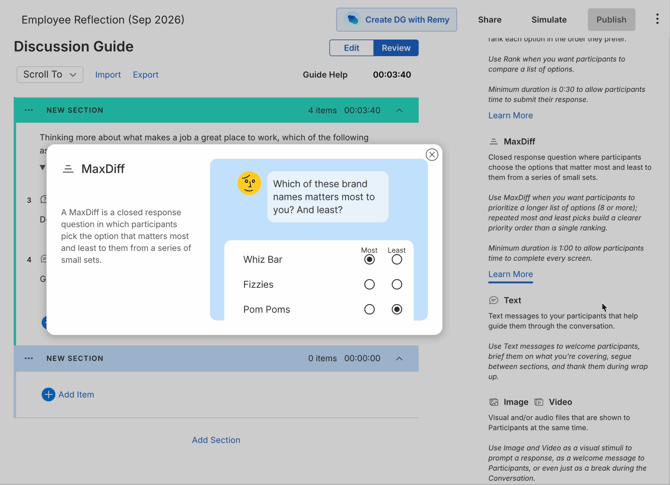
Remesh turns your option list into a balanced set of screens. Every screen shows 4 options, and every option appears the same number of times across the screens. Up to 20 options, each option is shown 3 times; from 21 to 30 options, each is shown twice. There are never more than 15 screens.
|
Options |
Screens |
Options |
Screens |
|---|---|---|---|
|
8 |
6 |
16 |
12 |
|
9 |
9 |
17 |
13 |
|
10 |
10 |
18 |
14 |
|
11 |
11 |
19 |
15 |
|
12 |
9 |
20 |
15 |
|
13 |
13 |
21 to 22 |
11 |
|
14 |
14 |
23 to 24 |
12 |
|
15 |
15 |
25 to 26 |
13 |
|
27 to 28 |
14 |
||
|
29 to 30 |
15 |
All participants answer the same set of screens, but each participant sees the screens, and the options within each screen, in their own random order. That order stays the same if they reload the page.
Participant Experience
Participants work through the screens one at a time.
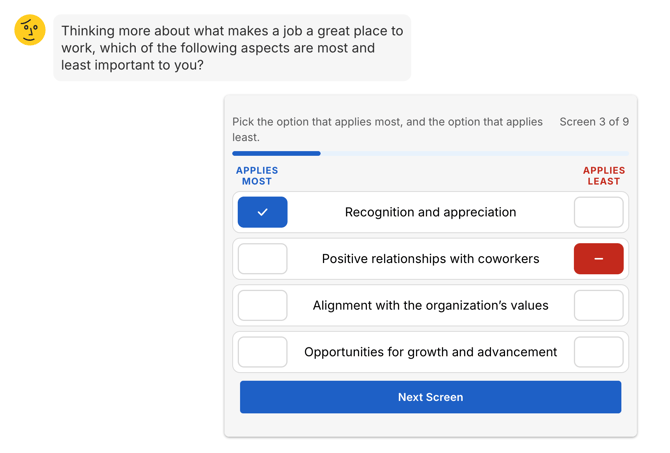
- Each screen reads "Pick the option that applies most, and the option that applies least." with a "Screen X of Y" progress indicator and bar.
- The four options appear as rows with two columns of selectors: Applies most and Applies least.
- Both picks are required before Next Screen (or Submit on the last screen) becomes active. The same option cannot be both most and least; choosing it in the other column moves the pick.
- In Live, after the final screen participants see "Waiting for others to respond..." until the question closes.
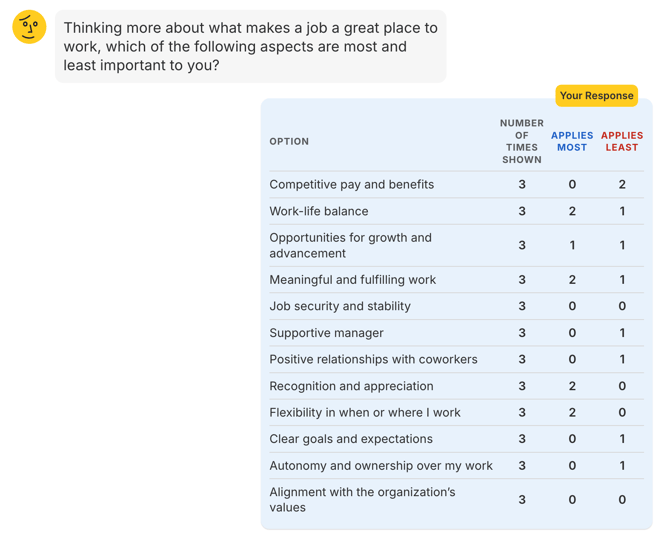
After submitting. Participants see a Your Response table listing the options they were shown, with columns Option, Number of times shown, Applies most, and Applies least. Participants never see group counts or scores, in Live or Flex.
Partial answers. Each screen is saved as soon as the participant advances. If a Live timer ends or a Flex participant leaves part way through, the screens they completed still count in the scores. A MaxDiff counts toward a participant's completion rate only when they answer at least two-thirds of its screens.
How Scores Are Calculated
Every option gets a Net Best-Worst Score:
Score = (Number of times chosen Most - Number of times chosen Least) / Number of times shown x 100
|
Score |
Meaning |
|---|---|
|
+100 |
Chosen as "applies most" every time it was shown |
|
0 |
Chosen most and least equally often |
|
-100 |
Chosen as "applies least" every time it was shown |
The score is not a percentage. It tells you how strongly an option was preferred relative to the others it appeared alongside. Because every option is shown the same number of times, scores are directly comparable across options. Scores are shown as whole numbers in the platform (for example +29). An option that was never shown to the selected group displays a dash and sorts last.
Each participant also has an individual score per option, calculated the same way from their own picks; this is what the by-participant CSV export contains.
Monitoring Responses During the Conversation
Live. A MaxDiff results card appears under the sent question in the moderator view, with the respondent count and a table: Rank, Item, Times shown, Number Most, Number Least, Score. While the question is open the rows stay in question order and rank shows "-"; when the question closes, rows sort by score. Hover the Score header for a plain-language explanation of the score.
Flex. The same card appears on the live page, always sorted by score, and updates as responses arrive.
Analyze panel. Open the Analyze panel on a MaxDiff question to compare All participants with up to two segments side by side. Each column lists the items by score with their Most, Least, and shown counts. Full analysis in Results is available once the conversation has ended.
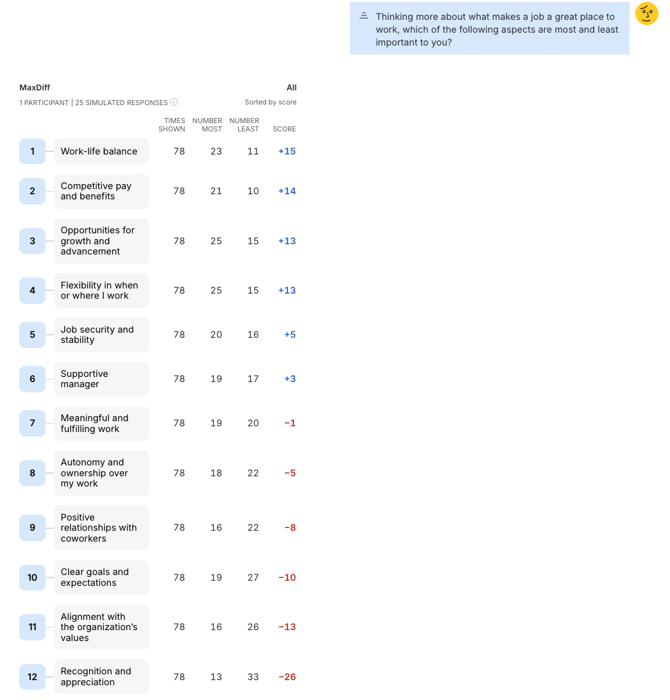
Analyzing MaxDiff Results
Open the question in Analysis > Results.
Views
|
View |
What it shows |
|---|---|
|
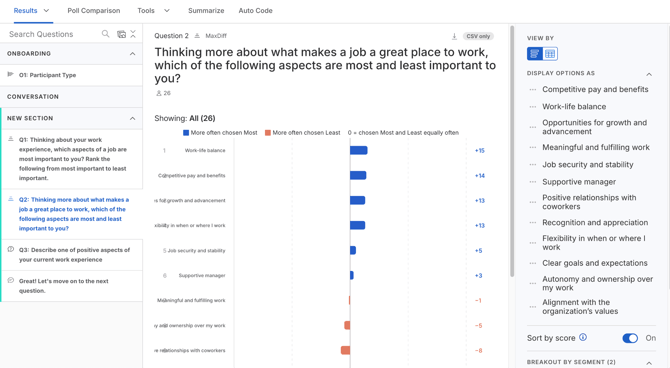
Bar graph (default) |
A diverging bar per option on a Net Best-Worst Score axis from -100 to +100. Bars to the right were "More often chosen Most"; bars to the left were "More often chosen Least". Hover a bar for its Most, Least, and shown counts. |
|
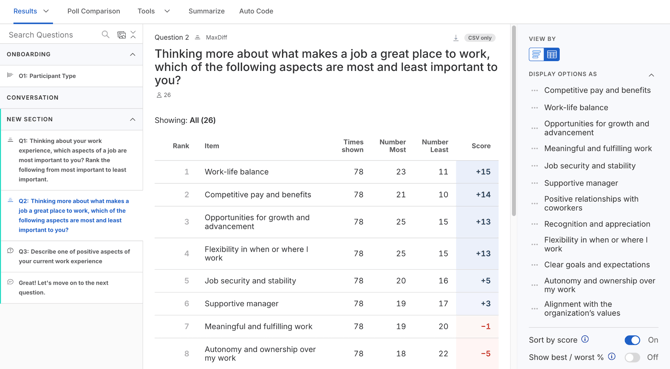
Table |
Rank, Item, Times shown, Number Most, Number Least, Score. Turn on Show best / worst % to add % Most and % Least columns. |
Controls (left sidebar)
- Sort by score (on by default): items ranked high to low. Off: the order the items were written in. Rank numbers stay put either way.
- Show best / worst % (off by default): adds % Most and % Least columns to the table. Most useful when scores are close.
Segments. Choose a segment to re-render the graph or table for that group; the header reads "Showing: {segment} ({respondents})". MaxDiff shows one segment at a time. To compare segments, switch between them, use the Analyze panel, or ask Remy.
MaxDiff Summary. The table view includes a summary block with the highest-scoring item, lowest-scoring item, score range, exposures per item (and about how many per respondent), and respondent count.
Summarize. In the Summarize tab, MaxDiff questions appear under "Poll, Ranking, and MaxDiff" and receive an overall summary plus consensus and divergence summaries. Consensus highlights items that scored similarly across segments; divergence names the largest score gap between two segments.
Exporting MaxDiff Data
|
Export |
What MaxDiff looks like |
|---|---|
|
By-question CSV |
One row per option with Question Type "MaxDiff" and the score for All and for each segment. Options are listed best to worst. |
|
By-participant CSV |
One column per option, headed MaxDiff Score - {option} - {question}, holding each participant's own score for that option, or "--" if they were not shown it or did not answer. |
|
Topline PowerPoint |
A "MAXDIFF RESULTS" slide with Rank, Item, Times shown, Most, Least, and Score columns (All and each segment), with a footnote explaining the score. Tied scores share a rank. |
|
Participant View |
Includes a sortable MaxDiff column and exports it in the Participant View CSV. |
The per-question export button on the Results page is not yet available for MaxDiff; use the conversation-level exports above.
MaxDiff and Remy
- Talk To Your Data: Remy can read MaxDiff scores, compare them across segments, and cite them when you ask questions like "Which workplace aspects scored highest, and where do managers and individual contributors disagree?"
- AutoDG: Remy proposes a MaxDiff when a section's goal is to prioritize roughly 8 to 20 items, and uses Ranking for shorter lists.
- Conversation Merge: compatible MaxDiff questions (same number of options, same timing, equivalent screens) can be merged using the option mapper with one-to-one option mapping. MaxDiff options cannot be combined or split during a merge.
- Simulation: simulated participants answer MaxDiff questions, so you can preview results before fielding.
Troubleshooting
- I cannot save the question. Check that you have between 8 and 30 options, that none are blank or duplicated, and that each is 255 characters or fewer. The error "Enter a question and between 8 and 30 unique options." covers these cases.
- I cannot add or remove an option. The question has already been sent. Screens are built around the option count, so only option wording can change after send. Duplicate the question to start over.
- The builder is warning me about duration. Your Live duration gives participants less than about 10 seconds per screen. Increase the duration (up to 5:00) or reduce the option count.
- A participant's MaxDiff did not count toward completion. A MaxDiff counts as completed only when at least two-thirds of its screens are answered. Their partial picks are still included in the scores.
Frequently Asked Questions
- How many options can I use? Between 8 and 30. Use Ranking for fewer than 8.
- How long does a MaxDiff take participants? About 10 seconds per screen. A 12-option MaxDiff has 9 screens, so roughly 90 seconds.
- Do all participants see the same screens? Yes, every participant answers the same balanced set of screens, in their own random order with options shuffled within each screen.
- Can participants skip a screen? No. Both a most and a least pick are required to move on. If they leave before finishing, the screens they completed still count.
- Do participants see the group results? No. After submitting they see only their own picks.
- What does a score of 0 mean? The option was chosen "applies most" and "applies least" equally often. The score is not a percentage.
- Can I compare two segments side by side in Results? Results shows one segment at a time. Use the Analyze panel (All plus up to two segments) or ask Remy to compare segments.
- Can I use MaxDiff in a Video Interview? No. MaxDiff is available in Live and Flex conversations only.
- Can I merge MaxDiff questions across conversations? Yes, when the questions have the same number of options, the same timing, and equivalent screens. Options are mapped one to one in the merge option mapper.
- Can I build segments or branch from a MaxDiff? No. Segments come from polls, and Branching questions branch from a poll. You can apply existing segments to MaxDiff results.
- I found an issue or have feedback. File a support ticket.